
Looking for a capable multifunction printer that can handle everything from daily documents to the occasional color project? We spent some time with the Canon imageCLASS MF656Cdw and found it to be a solid performer for small and medium-sized offices.
This wireless all-in-one prints, scans, copies, and faxes at a pretty respectable 22 pages per minute, whether you’re going color or sticking to black-and-white.
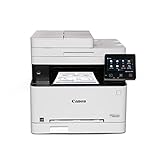
- Wireless 4-in-1 (print, scan, copy, fax)
- Print up to 22 pages per minute (bw / color, letter)
- Uses Toner 067 / 067 High Capacity Toner - high capacity toner options keep up with your printing needs and limit toner replacement interruptions


The 5-inch color touchscreen is straightforward enough, though some folks need a little time to get used to the interface. Print quality is sharp at 1200 x 1200 dpi, so your reports and marketing materials look professional.
Automatic duplex printing and the one-pass duplex scanning definitely save time and paper. It’s one of those features you don’t realize you need until you have it.
Setup doesn’t take much effort, and you get USB, Ethernet, and Wi-Fi connectivity. Once you get the Canon PRINT Business app set up, mobile printing works reliably.
The 250-sheet paper cassette is enough for most daily needs. If you need to scan a stack, the 50-sheet automatic document feeder is a lifesaver.
A few users complain the starter toner runs out faster than they’d like, so expect to buy replacements sooner than you think. This thing weighs almost 50 pounds, so once you find a spot for it, it’s probably not moving again soon.
At about 18 x 18 x 16 inches, you’ll need a decent chunk of desk space. The three-year warranty is reassuring, and Canon’s support is generally accessible if you need it.
Overview of the Canon imageCLASS MF656Cdw
This all-in-one laser printer is aimed at small to medium businesses that want reliable color printing without endless maintenance. The MF656Cdw puts out 22 pages per minute in both color and black-and-white, which is pretty adequate for most office workloads.
The device covers printing, scanning, copying, and faxing in one machine. There’s a 5-inch color touchscreen for navigation, but some users do say it takes a little time to figure out. It accepts different paper types, including envelopes and banners, using the 250-sheet cassette and a single-sheet multipurpose tray.
Key Physical Features:
| Component | Capacity |
|---|---|
| Paper Cassette | 250 sheets |
| Document Feeder | 50 sheets (duplex) |
| Weight | 48.5 pounds |
You get WiFi, Ethernet, and USB for connectivity. The automatic document feeder scans both sides of a page in one go, which genuinely saves time. Canon backs it with a three-year limited warranty.
Wireless Printing Convenience
Setting up wireless printing is pretty straightforward. The MF656Cdw connects over Wi-Fi 802.11b/g/n and offers Wi-Fi Direct, so you can print from your device even if there’s no router.
Mobile printing through Canon PRINT Business works well on both iOS and Android. The printer responds quickly to jobs sent from phones and tablets.
Switching from Wi-Fi to ethernet is seamless, and both options perform solidly. Wireless connections stayed stable during testing—no annoying disconnects.
Chromebook compatibility is handy if you’re using Chrome OS. Just know there’s no USB cable included, so if you want a wired backup, you’ll need to pick one up.
Fast Color Print Speeds
When you’re up against a deadline, you want your documents fast. The MF656Cdw delivers 22 pages per minute for both color and black-and-white jobs, which is right in the middle of the pack for office laser printers.
During testing, it handled multi-page color documents without much slowdown. The first page takes about 10 seconds to come out, which is pretty normal for a laser printer warming up.
Key Performance Points:
- 22 ppm for color printing
- 22 ppm for monochrome printing
- First page ready in 10.3 seconds
For small to medium workloads, these speeds are just fine. If you’re printing hundreds of color pages every day, you might want to look elsewhere, but for most offices, it’s quick enough to keep things moving.
Versatile Media Handling
The MF656Cdw isn’t just for standard letter paper. It handles envelopes, banners, and smaller formats like 3×5 inch paper in the multipurpose tray, which is nice for those odd jobs that pop up.
The 250-sheet main cassette is good for everyday printing volume. The single-sheet multipurpose tray lets you swap in specialty media without emptying the main tray.
The 50-sheet automatic document feeder scans both sides in one pass, making copying and scanning a lot less tedious. It supports paper sizes up to 8.5×14 inches, so legal documents and longer formats are covered.
Intuitive 5-Inch Color Touchscreen
The touchscreen makes navigation feel pretty modern. It’s 5 inches, in color, and responds quickly to touch, with a menu layout that’s mostly logical.
You can customize the interface to put your most-used functions up front. The screen’s big enough that menus don’t feel cramped, but the initial setup can feel a bit menu-heavy.
Key Interface Benefits:
- Responsive touch controls
- Customizable menu layout
- Clear icon design
No more hunting through endless button combinations like on old printers. If you’ve got big fingers, you might hit the wrong icon once in a while, but it’s not a dealbreaker.
Automatic Duplex Printing and Scanning
Duplex features are a real time-saver. Automatic two-sided printing means you don’t have to flip pages yourself, so longer print jobs go faster and use less paper.
The scanning stands out for its one-pass duplex tech—both sides of the page are scanned at once. The 50-sheet automatic document feeder is a big help for batch scanning.
Key duplex capabilities:
- Automatic two-sided printing reduces paper waste
- One-pass duplex scanning saves time on multi-page documents
- Works with the 50-sheet ADF for batch processing
Duplex printing can be a bit slower than single-sided, but that’s just how laser printers work. The one-pass scanning is noticeably quicker than the old back-and-forth style.
Mobile Device Compatibility
Printing from your phone or tablet is easy with the MF656Cdw. It supports Canon’s mobile app and Apple AirPrint, so you don’t need a computer in the middle.
Wi-Fi Direct is especially handy, letting you connect mobile devices directly—even if there’s no Wi-Fi network around. That means you can print from your smartphone pretty much anywhere.
You can also scan and copy using the Canon mobile app, which is genuinely convenient for quick tasks. Setup with mobile devices only takes a few minutes, and the connection stays solid.
The printer’s touchscreen makes it simple to manage mobile print jobs as they come in.
Energy Efficiency and Eco-Friendly Features
Using this printer regularly, it’s clear Canon tried to keep energy consumption in check. The MF656Cdw is ENERGY STAR certified, so it meets the EPA’s energy efficiency standards.
Duplex printing helps cut paper use, and the device holds EPEAT Silver certification for environmental design. High-capacity toner cartridges reduce waste, though a few users say they go through toner faster than they’d like.
The printer drops into sleep mode when idle, sipping power but waking up quickly when you need it.
Pros and Cons
After running this all-in-one through its paces, a few strengths and weaknesses stand out. The MF656Cdw gives solid performance for small or home offices, but it’s not without quirks.
Pros
Wireless connectivity is reliable, whether you go with WiFi or Ethernet. Setup is quick, and it plays nicely with computers and mobile devices using the Canon PRINT Business app.
Print quality is consistent for both color and black-and-white at 22 pages per minute. Duplex printing works as advertised and saves paper.
The 50-sheet automatic document feeder makes scanning and copying multi-page documents painless. One-pass duplex scanning is much faster than flipping pages by hand.
It’s energy efficient, meeting ENERGY STAR standards, and the three-year warranty is longer than what most competitors offer. Chromebook compatibility is a bonus for mixed-device offices.
Cons
It’s a bit loud—louder than you might expect from a modern printer. In a quiet office, it could be a distraction.
Paper size recognition sometimes acts up, with users having to tweak settings to get the printer to acknowledge the right dimensions.
Toner doesn’t always last as long as you’d hope, depending on your print volume. High-capacity cartridges help, but they’re an ongoing expense.
The multipurpose tray only holds one sheet, so if you need to print on specialty media, you’ll be swapping paper more than you’d like. Some spec details in product listings have been off, so double-check before buying.
Customer Reviews
Feedback from verified buyers is a mixed bag. Many users like the easy setup, mentioning good experiences with both WiFi and Ethernet connections.
The scanning functionality gets a lot of praise for reliability. Print quality is a highlight for most, and duplex color printing is a big step up for those upgrading from older models.
Some users run into paper handling frustrations—streaking and feed issues crop up now and then.
Common Concerns:
- Toner seems to run out faster than expected for some
- Paper size recognition can be finicky
- It’s not the quietest printer, but noise is generally manageable
A few people mention discrepancies in product descriptions, especially around paper compatibility and what’s included in the box. Overall, it gets solid marks for standard office tasks, but experiences do vary.
Frequently Asked Questions
What are the key features and benefits of the Canon imageCLASS MF656Cdw printer?
The MF656Cdw packs printing, scanning, copying, and faxing into one device. It prints at 22 pages per minute in both color and black-and-white, so you won’t be waiting forever for your documents.
Automatic duplex printing handles two-sided jobs without you needing to flip pages, and the 50-sheet automatic document feeder scans both sides in one shot. The 5-inch color touchscreen makes it easy to find what you need.
Wireless, Ethernet, and USB connectivity give you options for how you want to connect. The Canon PRINT Business app means you can print from your phone or tablet, and the machine handles different paper sizes—including envelopes and legal—using its 250-sheet cassette and multipurpose tray.
How does the Canon imageCLASS MF656Cdw compare to the MF654Cdw in terms of performance and features?
Both models hit the same 22 ppm print speed and offer similar core functions. The MF656Cdw is technically the newer generation, and you can really feel that in the touchscreen—it’s just easier to use.
Print quality? Pretty much identical, since they’re running on the same laser tech. The MF656Cdw does add Chromebook compatibility, which is actually a nice touch if you’re not all-in on Windows or Mac.
Warranty’s three years on the MF656Cdw, so you get a bit more peace of mind. In everyday use, you probably won’t notice much difference in speed, but the newer one does have updated firmware that plays nicer with modern devices.
Is the Canon imageCLASS MF656Cdw suitable for high volume printing needs?
It’ll handle moderate office demands decently, but if you’re churning out huge stacks every day, you might get a little frustrated. The 250-sheet tray means you’ll be refilling more often if you’re running big jobs.
Toner yields depend on what you buy. Standard black does 1,350 pages, and those color starter cartridges only get you about 680 pages. If you go for the high-capacity toner, you won’t be swapping cartridges as often, which is a relief during busy weeks.
The 22 ppm speed is fine for small to medium-sized businesses, but if you’re in a place where the printer never gets a break, it might feel sluggish. Some folks mentioned toner seems to run out fast with regular use, so costs can add up.
Printing a few hundred pages daily? It’ll keep up. If your office needs thousands every week, you’ll want to think hard about whether the paper tray and toner capacity are enough.
How user-friendly is the setup and operation of the Canon imageCLASS MF656Cdw?
Setup’s straightforward whether you go wireless, Ethernet, or just plug in USB. Wireless connects without much hassle, and switching between connection types isn’t a headache.
That 5-inch touchscreen is clear and pretty responsive. If you’ve used a smartphone, you’ll pick it up quickly, though sometimes you have to dig through a couple menus to find what you want.
Mobile printing with the Canon PRINT Business app works well after the initial setup. There are plenty of other mobile print options, so you’re not boxed in by device type.
The automatic document feeder is a real time-saver for multi-page scanning and copying. Swapping paper or toner is simple enough—not really something you’ll need to call IT about.
What is the quality of color prints with the Canon imageCLASS MF656Cdw?
Color prints come out vibrant, good enough for business docs, presentations, and marketing pieces. The 1200 x 1200 dpi resolution keeps text sharp and graphics looking clean.
Color accuracy stays pretty steady across different jobs. Mixed text and color graphics look crisp, though if you’re hoping for photo lab quality, you might be a bit let down.
Duplex printing keeps both sides looking sharp, with no obvious drop in quality. A few users have run into streaking or print issues, but those seem to be rare or maybe just unlucky units.
Black text is sharp and easy to read, even at small sizes. The MF656Cdw handles color gradients fairly well for charts and business graphics, though really subtle transitions might show a little bit of banding.
What are the ongoing costs for toner and maintenance for the Canon imageCLASS MF656Cdw?
Toner is really where you’ll see most of your ongoing expenses. The printer runs on four separate cartridges: black, cyan, magenta, and yellow.
Standard black cartridges yield about 1,350 pages. Those starter color cartridges? They manage roughly 680 pages each.
If you’re printing a lot, high-capacity cartridges are a much better deal per page. Some folks have noticed that toner seems to run out quicker than they’d like, especially with lots of color prints.
The machine comes with a three-year warranty that covers manufacturer defects. That does offer a bit of peace of mind when it comes to surprise repair costs.
Maintenance is pretty straightforward—mostly just swapping out toner and giving the inside a quick clean now and then.
Paper costs will depend on how much you’re printing and what kind of paper you prefer. No need for fancy media; regular office paper works just fine for day-to-day stuff.
Energy Star certification should help keep electricity bills in check, both when it’s running and on standby. Ultimately, how much you spend will hinge on how much you print—and whether you’re mostly doing color or sticking to black-and-white.


