
Working with just one monitor? It’s a pain—always flipping between windows, losing your place, and breaking your flow. Studies suggest that adding more screens can boost productivity by as much as 42%, mostly because you’re not constantly minimizing, maximizing, or searching for that lost app.
Adding a second or third monitor—or even switching to an ultrawide—gives you the space to keep docs, apps, and browser tabs open side by side. No more window Tetris.
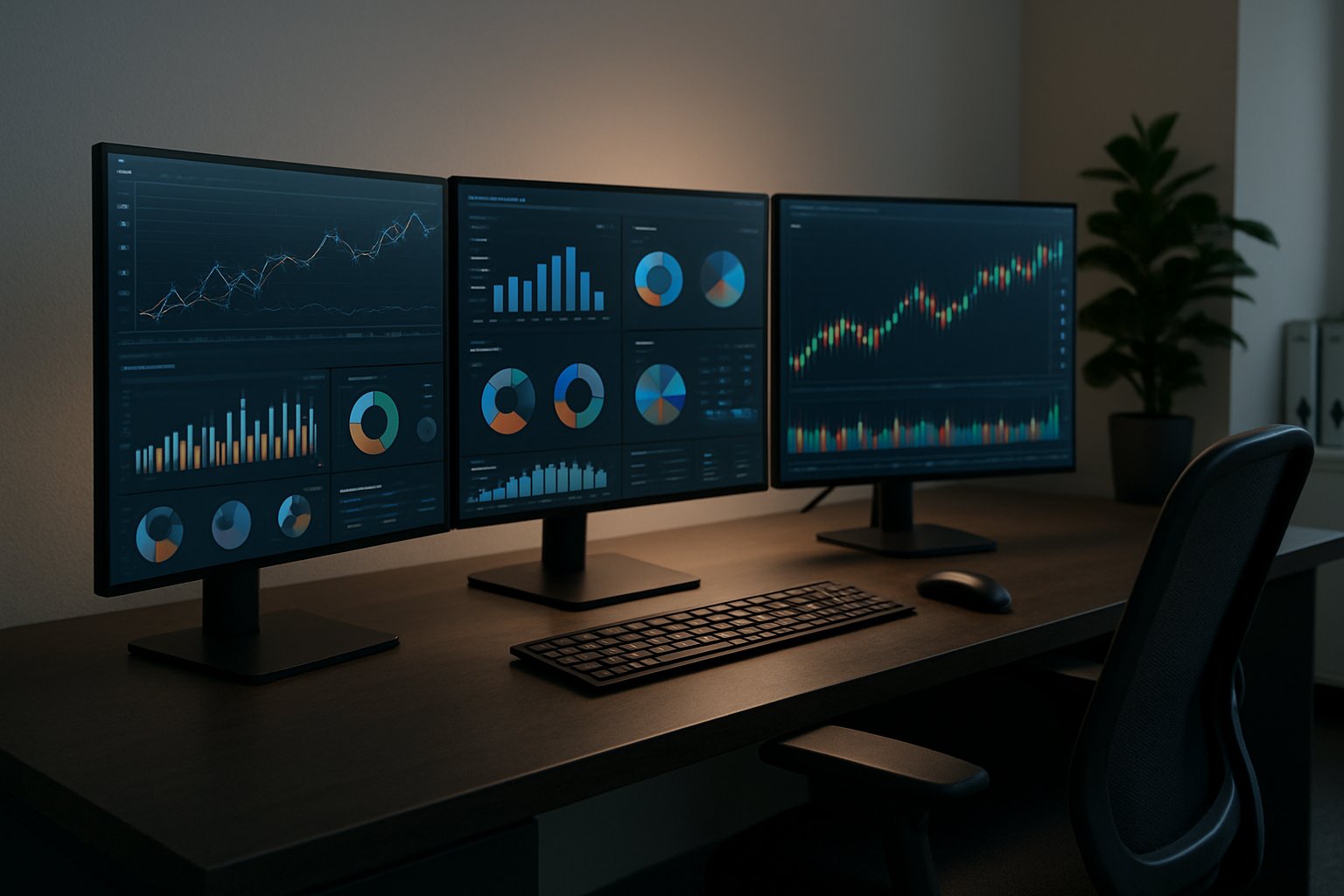
But it’s not just about plugging in another screen and calling it a day. The magic happens when you actually set things up right: tweak your display settings, arrange your monitors with arms or stands, and figure out how to let your apps breathe across all that new space.
If you take the time to get the alignment, resolution, and taskbar settings sorted, you’ll notice daily tasks just flow better. The difference? It’s pretty dramatic once you get used to it.
A good multi-monitor setup means you can keep reference material, chat apps, and your main project visible all at once. Whether you go for a dual monitor setup, triple array, or just one massive ultrawide, what works best really depends on what you do and how much desk you’ve got to play with.
Key Takeaways
- Multi-monitor setups can boost productivity by up to 42% by reducing window-switching time and increasing visible workspace.
- Proper display configuration—including resolution, orientation, and monitor alignment—is essential for maximizing the benefits of multiple screens.
- Users can choose between dual monitors, triple monitor arrays, or ultrawide displays based on their specific workflow needs and available desk space.
Mastering Multi-Monitor Setups for Productivity Gains

Turns out, the numbers don’t lie. People with dual or triple monitors tend to finish tasks 18-42% faster than those stuck on a single screen.
Why? Because less time is wasted flipping between windows, and you can keep the important stuff right in front of you.
The right hardware and a thoughtful physical arrangement can turn your desk from a bottleneck into a launchpad.
Maximizing Screen Real Estate and Reducing Window-Switching
Multi-monitors completely change how you interact with your computer. Instead of the endless Alt+Tab shuffle, you can keep your reference docs on one screen and your main work on another.
Most folks don’t realize how much time is lost switching windows. Dual-monitor users do it 15% less, which adds up to a lot over a week.
The more complex the job, the bigger the gains. Simple stuff gets done about 10% faster, but if you’re knee-deep in data or comparing documents, you might work 50% quicker.
Developers, for example, love having code on one screen and docs or debugging tools on the other. It takes the mental friction out of switching contexts.
There’s even evidence that extra screens mean fewer mistakes—some studies say error rates drop by a third when you can see everything you need at once.
Essential Steps to Configure Dual and Triple Monitor Arrays
First things first: make sure your graphics card can handle the number of monitors you want. Check for HDMI, DisplayPort, USB-C, or DVI ports.
Most laptops handle at least one extra screen. Desktops can usually do two, sometimes more.
Once you’re plugged in, head to your display settings. On Windows, right-click the desktop and hit “Display settings.” Mac users go to System Preferences > Displays.
You’ll see numbered boxes for each monitor. Drag them around so they match your real-life setup—otherwise, your mouse will jump in weird directions.
Pick your primary display; that’s where your taskbar and main apps will pop up.
Adjust resolution and scaling so text isn’t tiny or blurry. If your monitors have different pixel densities, you might need to play with scaling so everything looks right.
Ultrawide Displays vs. Multi-Monitor Configurations
Ultrawide monitors (think 34-49 inches, 21:9 or 32:9 aspect ratios) give you a huge, uninterrupted workspace. They’re awesome for stuff like video editing or design where you want one big canvas.
But if you’re after sheer pixel count or flexibility, dual monitors usually win. Two 27-inch 1440p screens deliver more pixels than a single 34-inch ultrawide.
You can also rotate one vertically for reading long docs or code, which is handy.
Price-wise, two decent 24-inch monitors often cost less than a high-end ultrawide and give you more resolution. But ultrawides take up less desk space and mean fewer cables.
It all comes down to what you do. Traders love separate screens for different data feeds. Designers might prefer the seamless width of an ultrawide. Some folks even mix both—ultrawide for the main work, a regular monitor for chat or email.
Selecting and Positioning Monitor Arms and Stands
Monitor arms are a game changer for desk space and ergonomics. They let you float your screens, adjust height, tilt, and even rotate with ease.
Dual and triple arms clamp to your desk and usually handle 15-30 pounds per arm. Just check your monitor supports VESA mounting (75x75mm or 100x100mm)—not all do.
For comfort, the top of your main monitor should be at or just below eye level, about 20-40 inches from your face. Angle side monitors in about 20-30 degrees so you’re not craning your neck.
Gas spring arms are smooth and easy to move, but mechanical arms are cheaper if you don’t need to adjust often.
Triple monitor setups look best with the main screen front and center, side monitors angled in. It’s a favorite among developers and analysts—almost like sitting in a cockpit.
Optimizing Display Settings and Workflow Efficiency

Dialing in your display settings is where the real productivity boost happens. It’s not just about more screens—it’s about making them work for you.
Resolution tweaks, window management tools, and keyboard shortcuts can smooth out a lot of the bumps in your daily routine.
Fine-Tuning Resolution, Scaling, and Refresh Rate
Resolution matters—a lot. On Windows 10 or 11, go to Settings > System > Display and you’ll see each monitor as a numbered rectangle.
Set each one to its native resolution (usually 1920×1080 for standard, 3840×2160 for 4K). If things look tiny, bump up the scaling to 125% or 150% until text is readable.
If you mix monitors with different pixel densities, you might notice the mouse jumps oddly between screens. Adjust scaling until it feels right.
Refresh rate is another one to check, especially if you’ve got a gaming monitor. Right-click the desktop, choose Display Settings, then Advanced Display Settings to see your options.
HDMI cables usually max out at 120Hz, while DisplayPort can go higher. VGA? Just avoid it—it’s old and only does analog signals.
Plug everything into a surge protector. Power spikes are rare, but you don’t want to fry your gear.
Advanced Window and Task Management Tools
If you want to get fancy, try DisplayFusion. It gives you control over window layouts, per-monitor taskbars, and little buttons to snap windows into place.
PowerToys FancyZones is another favorite. You can set up custom grid layouts for each monitor and snap windows into zones by holding Shift while dragging.
Handy Multi-Monitor Features:
- Split taskbars so each monitor shows only the apps open there.
- Monitor-specific wallpapers to help you tell screens apart at a glance.
- Window recall puts your favorite apps on the right monitor at startup.
- Custom hotkeys to fling windows between displays instantly.
It helps to dedicate each monitor to a type of work. Use your main screen for focus, a side screen for chat or reference, and maybe another for background stuff.
Some people use the Pomodoro Technique—keeping a timer on a side monitor while they crank through tasks on the main one. It’s not for everyone, but it can keep you honest.
Leveraging Keyboard Shortcuts, Hotkeys, and Virtual Desktops
Keyboard shortcuts are honestly a lifesaver—they spare you from that endless mouse shuffle all day long. For example, Windows Key + Shift + Left or Right Arrow will toss your active window between monitors in Windows 10 and 11.
Need to switch display modes? Windows Key + P lets you jump between PC screen only, duplicate, extend, or second screen only. It’s surprisingly handy once you get used to it.
Virtual desktops in Windows are a bit like having secret workspaces tucked away—no extra hardware required. Hit Windows Key + Ctrl + D to spin up a new desktop. Then, Windows Key + Ctrl + Left or Right Arrow lets you hop between them.
Some folks organize desktops by project: maybe one for email, another for coding, and a third for design or creative stuff. It keeps things less chaotic, at least in theory.
Essential Multi-Monitor Hotkeys:
| Shortcut | Function |
|---|---|
| Win + Shift + Arrow | Move window between monitors |
| Win + Left/Right Arrow | Snap window to screen half |
| Win + Up Arrow | Maximize active window |
| Alt + Tab | Switch between open applications |
| Win + Ctrl + D | Create new virtual desktop |
If you want to get fancy, tools like PowerToys or DisplayFusion let you make custom hotkeys. You could set up keys to launch apps on a specific monitor, tweak monitor brightness, or call up a saved window layout. It’s a bit of setup, but anything that cuts down on repetitive clicks is worth considering—especially if your eyes are starting to feel it after hours at the screen.
Taskbar settings can really change how you move around on multiple monitors. In Windows 11, head to Settings > Personalization > Taskbar. There, you choose if the taskbar shows up on all screens or just the one where the app’s open. Personally, having the taskbar everywhere just feels faster—no need to chase your cursor across the desktop.