Working on a single monitor means constantly minimizing, maximizing, and hunting for the right window while productivity slips away with every click. Research shows that properly configured multi-monitor setups can increase productivity by up to 42% by eliminating the mental overhead of constant window switching and providing persistent visibility of critical information. The difference between juggling tabs on one screen and smoothly glancing between displays is the difference between struggling through your workday and flowing through it.

Adding a second or third monitor to your workspace, whether through traditional displays or ultrawide alternatives, fundamentally changes how you interact with your computer by keeping reference materials, communication tools, and active projects visible simultaneously. This isn’t about having more screens for the sake of it. It’s about reducing cognitive load, maintaining focus, and creating a workspace that adapts to your workflow instead of forcing you to adapt to technology’s limitations.
The transition from single to multi-monitor computing requires more than just plugging in extra displays. Understanding display configurations, selecting compatible hardware, managing cables, optimizing ergonomics, and configuring software properly all determine whether you gain meaningful productivity benefits or just end up with cluttered desk space. This guide covers everything needed to expand your display setup effectively, from choosing between dual monitors and ultrawides to configuring display settings and implementing workflow tools that maximize your increased screen real estate.
Key Takeaways
- Multi-monitor setups boost productivity by up to 42% by reducing window switching and maintaining simultaneous visibility of multiple applications
- Choosing between dual monitors, triple arrays, or ultrawide displays depends on specific workflow needs, available desk space, and budget considerations
- Proper configuration includes physical arrangement with monitor arms, display settings optimization, ergonomic positioning, and window management software integration
The Productivity Benefits of Multi-Monitor Setups
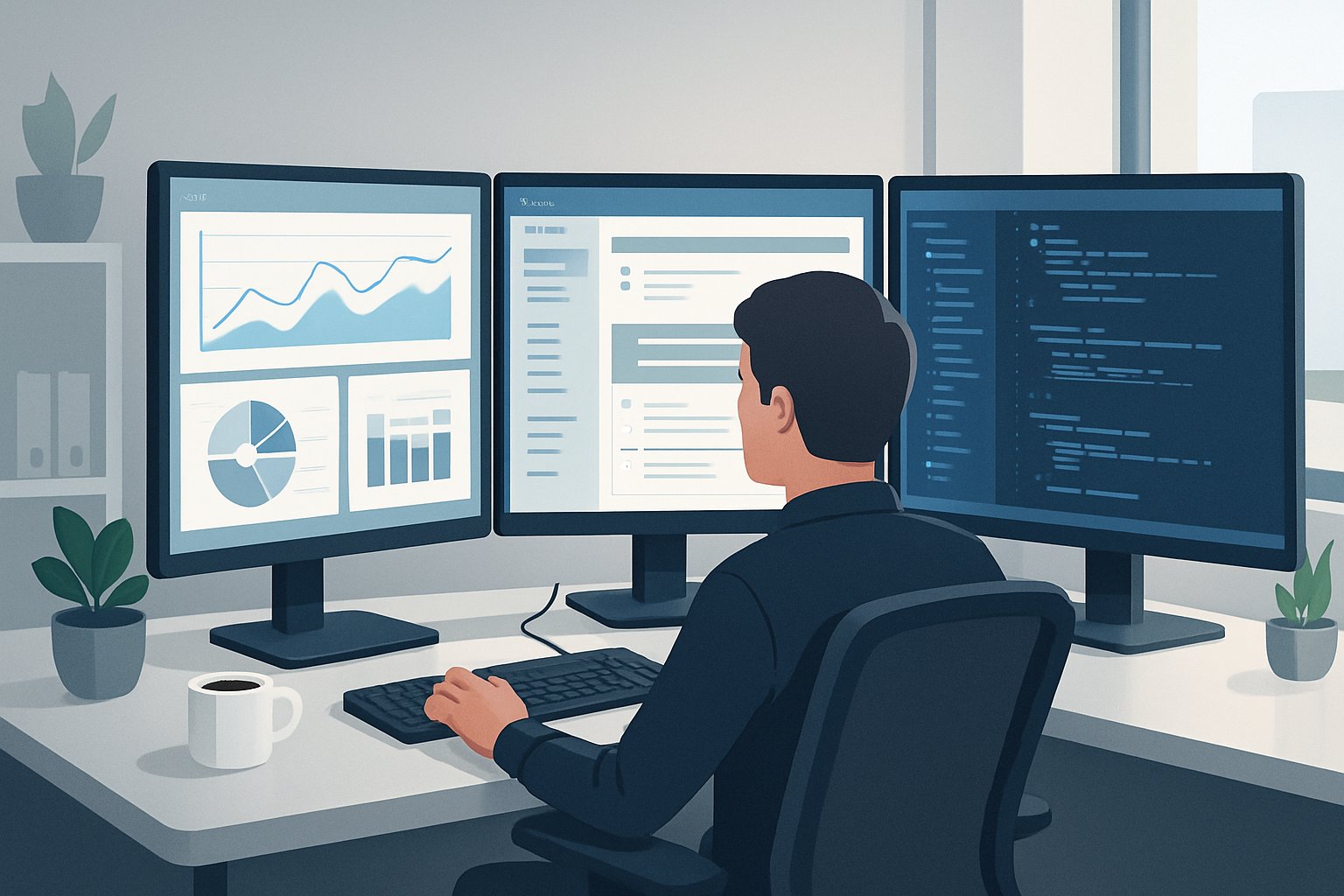
Multiple monitors deliver measurable improvements in work output by expanding available screen real estate and reducing the mental overhead of constant application switching. Users gain the ability to view reference materials, communication tools, and active projects simultaneously without disrupting their workflow.
How Multiple Monitors Increase Workflow Efficiency
A multi-monitor setup fundamentally changes how professionals interact with their digital workspace. Instead of minimizing and maximizing windows repeatedly, users can dedicate specific screens to particular tasks or application types.
Financial analysts position spreadsheets on one display while monitoring live data feeds on another. Software developers keep documentation visible on a secondary screen while writing code on their primary display. Content creators reference source materials without covering their editing workspace.
The expanded screen real estate allows for natural task segmentation. Email and messaging applications occupy one monitor without interrupting document editing or data analysis on others. This spatial organization reduces cognitive load because the brain doesn’t need to remember what’s hidden behind active windows.
Common workflow improvements include:
- Side-by-side document comparison without resizing windows
- Persistent access to communication tools
- Continuous visibility of monitoring dashboards
- Separate spaces for reference materials and active work
Reducing Window Switching and Improving Focus
Window switching creates micro-interruptions that accumulate throughout the workday. Each time a user switches contexts, they spend mental energy relocating information and reorienting to the task.
Multiple monitors eliminate this friction by keeping relevant applications constantly visible. A writer maintains research notes on one screen while drafting on another. A customer service representative views client information alongside their ticketing system without toggling between applications.
The reduction in window management directly translates to sustained attention. Users spend less time navigating their interface and more time executing tasks. This continuous visual access to tools and information prevents the workflow disruptions that fragment concentration and reduce output quality.
Research-Backed Productivity Gains
Studies demonstrate that multi-monitor setups can increase productivity by up to 42% compared to single-screen configurations. This improvement stems primarily from reduced window-switching time and increased visible workspace.
Research shows professionals using dual monitors complete tasks 20-50% faster than those working with single displays. The gains vary by profession and task type, with data-heavy roles experiencing more substantial benefits.
The productivity improvements compound over time. A worker who saves 15 minutes per day through reduced window management recovers over 60 hours annually. These time savings translate directly to increased output capacity without requiring additional work hours or resources.
Organizations implementing multiple monitors across teams typically see returns on their hardware investment within months through improved employee efficiency and reduced task completion times.
Choosing the Right Display Configuration
The choice between dual monitors, triple arrays, or ultrawide displays depends on workflow requirements, desk space, and budget constraints. Gaming monitors prioritize refresh rates while productivity monitors emphasize resolution and color accuracy.
Dual Monitors vs. Triple Monitors
Dual monitors represent the most common multi-display configuration. Two 24-27 inch screens provide enough workspace for most professionals without overwhelming desk space. This setup works well for tasks like coding with documentation, writing with research materials, or design work with tool palettes.
Triple monitor arrays suit users who manage multiple data streams simultaneously. Traders, video editors, and system administrators benefit from the additional screen. The typical configuration places the primary monitor directly ahead with secondary displays angled 20-30 degrees inward. This arrangement reduces neck strain compared to flat alignments.
The hardware requirements differ significantly between these options. Dual displays need one or two video outputs from the graphics card. Triple setups require three outputs and more GPU power, especially at higher resolutions. Most modern laptops support dual displays through built-in ports, but triple arrays often need desktop graphics cards or docking stations with multiple DisplayPort connections.
Ultrawide Displays Advantages
Ultrawide monitors with 21:9 or 32:9 aspect ratios deliver uninterrupted workspace. A 34-inch ultrawide at 3440×1440 resolution provides similar horizontal space to two 24-inch monitors without the center bezel gap. This seamless canvas benefits creative professionals working in video editing software, CAD programs, or design applications.
Cable management becomes simpler with a single display. One power cord and one video cable replace the multiple connections needed for dual displays. Desk space requirements also decrease since ultrawide stands typically occupy less depth than dual monitor arms.
Ultrawide Limitations:
- Lower total pixel count than equivalent dual monitors
- Fixed aspect ratio limits vertical workspace for coding or document review
- Higher initial cost compared to budget dual monitor setups
- Some applications struggle with non-standard aspect ratios
Selecting Productivity Monitors
Resolution determines text clarity and workspace capacity. A 1920×1080 (Full HD) 24-inch monitor provides 92 pixels per inch, while 2560×1440 (QHD) at 27 inches delivers 109 PPI. Higher pixel density reduces eye strain during extended work sessions.
Panel technology affects color reproduction and viewing angles. IPS panels offer superior color accuracy and wide viewing angles, making them ideal for design work and photography. VA panels provide better contrast ratios at lower prices. TN panels remain the cheapest option but suffer from poor viewing angles and color reproduction.
Connectivity options matter for future expansion. DisplayPort 1.4 supports higher resolutions and refresh rates than HDMI 2.0. USB-C monitors with Power Delivery can charge laptops while transmitting video through a single cable. VESA mounting compatibility (75×75mm or 100×100mm) enables use with monitor arms for ergonomic adjustments.
Refresh rate affects daily usability beyond gaming. A 75Hz monitor feels noticeably smoother than 60Hz during scrolling and window movements. Brightness levels between 250-350 nits work for most office environments, while home offices with windows may need 400+ nits to combat glare.
Setting Up Your Multi-Monitor Workspace
Getting monitors connected and positioned correctly determines whether a multi-monitor setup enhances productivity or creates frustration. The process involves selecting the right cables, configuring displays in software, and choosing mounting solutions that support ergonomic positioning.
Connecting Monitors: Cables and Ports
Most modern graphics cards offer HDMI, DisplayPort, USB-C, or DVI ports for connecting external displays. DisplayPort generally supports the highest refresh rates and resolutions, making it ideal for 4K monitors or high-refresh displays. HDMI works well for standard 1080p or 1440p monitors and is widely compatible across devices.
Users should check their graphics card specifications before purchasing monitors. Entry-level cards typically support two displays, while mid-range and high-end cards can handle three or more. Laptop users often have one or two video outputs, though USB-C docking stations can expand this capacity.
VGA cables and ports are outdated analog connections that limit resolution and image quality. They should be avoided in favor of digital connections. DVI ports, while digital, are also becoming obsolete and lack support for audio transmission or modern features like HDR.
For optimal performance, users should match cable quality to monitor specifications. A cheap HDMI cable might work for 1080p at 60Hz but fail with 4K at 120Hz. DisplayPort cables rated for version 1.4 or higher ensure compatibility with demanding displays.
Arranging Monitors Physically and Digitally
Physical positioning affects comfort and workflow efficiency. The primary monitor should sit directly in front of the user at arm’s length, with the top of the screen at or slightly below eye level. Secondary monitors typically angle inward 20-30 degrees to reduce neck strain.
In Windows display settings, users drag virtual monitor representations to match their physical desk layout. This prevents the cursor from jumping unpredictably between screens. The system needs to know which monitor sits left, right, above, or below the others.
Setting the correct monitor as primary determines where the taskbar appears and where applications launch by default. Most users designate their main work screen as primary, keeping secondary displays for reference materials or communication tools.
Resolution and scaling require individual adjustment per monitor. Mixed setups with different pixel densities need scaling tweaks so text remains consistent in size across displays. A 4K monitor beside a 1080p screen creates noticeable differences without proper scaling configuration.
Using Monitor Arms and Stands
Monitor arms free up desk space and provide adjustment flexibility that fixed stands cannot match. VESA mounting standards (75x75mm or 100x100mm) ensure compatibility between monitors and aftermarket arms. Users should verify their monitors support VESA before purchasing mounting hardware.
Gas spring arms offer smooth, tool-free adjustments for height, tilt, and rotation. They handle monitors weighing 15-30 pounds depending on the arm’s specifications. Clamp or grommet mounting options secure arms to desks without requiring permanent modifications.
Dual and triple monitor stands support multiple displays from a single base. These work well for users who don’t need frequent position changes or whose desks won’t accommodate clamp-style arms. Freestanding stands require more desk depth but avoid the need for edge mounting.
Vertical monitor orientation suits coding, document review, and web browsing by maximizing visible content length. Most monitor arms allow 90-degree rotation, though the monitor itself must support portrait mode in its settings. This configuration pairs well with a primary landscape display for versatile workspace layouts.
Configuring Display Settings for Maximum Efficiency
Setting your resolution to match each monitor’s native capabilities, designating the right primary display, and optimizing refresh rates ensures smooth cursor movement and crisp text across all screens.
Adjusting Resolution and Scaling
Each monitor should run at its native resolution for the sharpest image quality. Users can access display settings in Windows by right-clicking the desktop and selecting “Display settings,” where numbered rectangles represent each connected monitor.
Standard monitors typically run at 1920×1080, while 4K displays operate at 3840×2160. Setting a lower resolution than native makes text appear blurry and wastes available screen space.
Scaling compensates for high-resolution displays where text appears too small. Users working with 4K monitors often need to increase scaling to 125% or 150% to maintain readability without eye strain. Mixed monitor setups with different pixel densities require individual scaling adjustments for each display.
Windows allows independent scaling per monitor, preventing the common issue where text looks perfect on one screen but microscopic on another. Users should adjust scaling incrementally until content appears comfortable to read at arm’s length, typically 20-40 inches from the eyes.
Setting the Primary and Secondary Monitor
The primary monitor hosts the main taskbar, system tray, and where most applications launch by default. Users select their primary display in Windows display settings by clicking the desired monitor rectangle and checking “Make this my main display.”
Most people position their primary monitor directly in front of their seated position, with secondary displays angled to the sides. The physical arrangement in display settings should mirror the actual desk layout—otherwise, the mouse cursor jumps unexpectedly when moving between screens.
Users can drag the numbered monitor icons in display settings to match their physical positions. This configuration determines cursor behavior when moving off the edge of one screen to another.
Optimizing Refresh Rate
Refresh rate determines how many times per second the display updates its image, measured in Hertz (Hz). Standard monitors run at 60Hz, while gaming displays often support 120Hz, 144Hz, or higher.
Users access refresh rate settings through Advanced Display Settings in Windows. The available options depend on both the monitor’s capabilities and the cable type—HDMI typically caps at 120Hz, while DisplayPort supports higher rates.
Higher refresh rates reduce motion blur and create smoother cursor movement, particularly beneficial when dragging windows across multiple displays. Users should set each monitor to its maximum supported refresh rate for the best experience, though productivity-focused users see diminishing returns beyond 75Hz compared to gamers.
Streamlining Multi-Tasking With Window and Task Management Tools
Keyboard shortcuts eliminate repetitive mouse movements, while tools like PowerToys FancyZones and virtual desktops organize windows across multiple monitors for faster workflow. These features transform how users interact with their expanded display setups.
Leveraging Keyboard Shortcuts
Windows Key + Shift + Left or Right Arrow moves active windows between monitors instantly without touching the mouse. This shortcut saves significant time for users who frequently reorganize their workspace throughout the day.
Windows Key + Left or Right Arrow snaps windows to half the screen, while Windows Key + Up Arrow maximizes the current window. Alt + Tab cycles through open applications quickly, though it becomes less efficient with many windows open.
Windows Key + P switches display modes between PC screen only, duplicate, extend, or second screen only. This proves useful when connecting to projectors or temporarily disabling secondary monitors.
Essential Multi-Monitor Shortcuts:
| Shortcut | Function |
|---|---|
| Win + Shift + Arrow | Move window between monitors |
| Win + Left/Right Arrow | Snap window to screen half |
| Win + Up Arrow | Maximize active window |
| Alt + Tab | Switch between applications |
Custom Window Layouts and FancyZones
PowerToys FancyZones creates custom grid layouts on each monitor, allowing users to snap windows into predefined zones. After installing PowerToys, users hold Shift while dragging windows to see available zones highlighted on screen.
Each monitor can have unique zone configurations. A primary display might use a three-column layout for coding, documentation, and terminal windows, while a secondary monitor uses a two-row layout for email and chat applications.
FancyZones remembers which applications belong in specific zones. Users can set applications to automatically launch in designated positions, eliminating manual arrangement after system restarts.
The zone editor in PowerToys offers templates for common layouts or fully customizable grids. Changes apply immediately without restarting applications.
Virtual Desktops for Enhanced Organization
Windows 10 and Windows 11 support multiple virtual desktops that act as separate workspaces. Windows Key + Ctrl + D creates a new virtual desktop, while Windows Key + Ctrl + Left or Right Arrow switches between them.
Users organize desktops by project or task type. One desktop handles email and communication tools, another focuses on development work, and a third manages research and documentation. This separation reduces visual clutter and mental context switching.
Each virtual desktop maintains its own set of open windows, but the same application can appear on multiple desktops if needed. The Task View interface (Windows Key + Tab) displays all desktops and allows dragging windows between them.
Virtual desktops persist across sessions in Windows 11, automatically restoring the previous configuration after restart. Windows 10 requires third-party tools for this functionality.
Using Hotkeys for Fast Navigation
DisplayFusion and similar multi-monitor management tools extend Windows’ native hotkey system with monitor-specific commands. Users assign custom shortcuts to move windows to specific monitors, center windows on current displays, or span applications across multiple screens.
These tools also provide monitor-switching hotkeys that move the mouse cursor between displays. This proves faster than manually tracking the cursor across large or misaligned monitor arrays.
Advanced users create profiles with saved window positions and hotkeys to recall them instantly. A “coding mode” profile might arrange IDE, browser, and terminal in specific positions, while a “meeting mode” profile opens video conferencing and note-taking apps.
Taskbar configuration affects multi-monitor navigation efficiency. Windows 11 users access Settings > Personalization > Taskbar to choose whether the taskbar appears on all monitors or only shows applications open on that specific display. Displaying the taskbar on all monitors typically improves access speed.
Essential Software and Accessories for Advanced Setups
Specialized software tools streamline window management and taskbar functionality across multi-monitors, while proper cable organization and power protection maintain system reliability and workspace aesthetics.
Top Multi-Monitor Management Tools
DisplayFusion stands as the industry-leading solution for multi-monitor control, offering advanced features like custom window snapping, monitor-specific wallpapers, and titlebar buttons for quick window movement between screens. The software allows users to create keyboard shortcuts for moving windows across displays and supports monitor profiles that automatically adjust configurations based on connected displays.
Microsoft PowerToys provides free alternatives through its FancyZones feature, which enables custom snap layouts across multiple screens. Users can define specific zones on each monitor where windows automatically resize and position themselves.
Other notable options include Dual Monitor Tools for Windows-specific taskbar management and Actual Multiple Monitors, which adds native Windows features to secondary displays. These applications reduce the time spent manually arranging windows and eliminate the frustration of applications opening on incorrect monitors.
Taskbar and Display Customization Solutions
Windows 11 natively displays the taskbar on all monitors, but third-party solutions offer enhanced control over taskbar settings and behavior. DisplayFusion extends taskbar functionality by adding independent taskbars to each screen with customizable button arrangements and system tray icons.
Users can configure each monitor’s taskbar to show only applications running on that specific display, reducing clutter and improving task management efficiency. Multi-monitor taskbar management becomes essential when working with three or more displays, as tracking active applications across screens becomes increasingly complex.
Custom hotkeys allow instant window manipulation, while monitor fading features dim inactive displays to maintain focus on primary work areas. These customization options transform basic multi-monitor arrays into tailored workstations optimized for specific workflows.
Cable Management and Surge Protection
Proper cable routing prevents desk clutter and protects expensive display equipment from damage. Cable sleeves bundle DisplayPort, HDMI, and power cables into single channels that run along desk edges or through monitor arms. Under-desk cable trays keep excess cord length hidden while maintaining accessibility for adjustments.
A quality surge protector rated for at least 2,000 joules protects multi-monitor investments from power spikes. Models with 8-12 outlets accommodate multiple displays, desktop computers, and peripheral devices on a single protected circuit.
Velcro cable ties provide reusable fastening that allows easy reconfiguration when adding or removing monitors. Adhesive cable clips attach to desk surfaces and guide individual cables to their destinations without drooping or tangling.
Optimizing Ergonomics, Comfort, and Health
Multiple monitors can strain eyes and posture when positioned incorrectly, but proper ergonomic setup, strategic viewing angles, and scheduled breaks prevent discomfort while maintaining the productivity benefits of expanded screen space.
Eye Fatigue Reduction Strategies
Eye fatigue develops when users stare at multiple bright screens for extended periods without proper adjustments. The 20-20-20 rule provides effective relief: every 20 minutes, look at something 20 feet away for 20 seconds.
Display brightness should match the ambient lighting in the room. Screens that are too bright or too dim force eyes to work harder, accelerating fatigue.
Blue light filters reduce eye strain during evening hours. Windows 10 and 11 include Night Light mode, while macOS offers Night Shift. Both automatically warm screen colors after sunset.
Text size and scaling matter significantly. Users should avoid squinting by increasing font size or display scaling to 125-150% when native resolution makes content too small.
Monitor distance affects eye comfort directly. Screens positioned 20-40 inches away reduce the need for constant focal adjustments. Users with multiple monitors should keep the primary display directly in front to minimize head turning.
Regular cleaning prevents dust buildup that creates glare and reduces clarity. Anti-glare screen protectors help in bright environments where window light creates reflections.
Monitor Positioning and Viewing Angles
The top edge of the primary monitor should sit at or slightly below eye level when sitting upright. This position keeps the neck in a neutral posture and reduces strain during long work sessions.
Side monitors in dual or triple setups need angling inward by 20-30 degrees. This configuration minimizes neck rotation and keeps content readable without excessive head movement.
Users should tilt screens back 10-20 degrees from vertical. This angle reduces glare from overhead lighting and maintains a comfortable viewing position when eyes naturally angle downward.
Vertical monitor orientation works well for secondary displays used primarily for reading documents, code, or long web pages. The tall format reduces scrolling and displays more content at once.
Monitor arms provide adjustment flexibility that fixed stands cannot match. Gas spring arms allow easy repositioning throughout the day, letting users switch between sitting and standing heights or adjust for different tasks.
Distance between monitors should be minimal to avoid excessive eye travel. Bezels positioned too far apart create dead zones that interrupt visual flow.
Applying Productivity Techniques Like Pomodoro
The Pomodoro Technique structures work into 25-minute focused intervals followed by 5-minute breaks. This method pairs naturally with multi-monitor setups by dedicating one screen to a timer while keeping work visible on primary displays.
A visible timer on a secondary monitor serves as a constant reminder without requiring tab switching or phone checks. Free tools like Focus To-Do or Pomofocus run in browser windows or as desktop apps.
During 5-minute breaks, users should step away from all screens. This practice prevents eye fatigue accumulation and gives postural muscles time to reset.
After four Pomodoro cycles, a longer 15-30 minute break becomes necessary. Users can use this time for physical movement, hydration, or tasks that don’t involve screen time.
Task dedication by monitor enhances the Pomodoro approach. The main screen handles deep work during focus periods, while a side monitor displays reference materials or communication tools that can be checked during breaks. This separation prevents notification distractions during timed work sessions.
Time tracking data from Pomodoro apps helps identify peak productivity hours and optimal break timing. Some users find they need breaks every 20 minutes rather than 25, especially when working across multiple high-brightness displays.