
Remote work has transformed homes into professional workspaces, but many professionals still struggle with unreliable connections, device juggling, and network slowdowns that disrupt video calls and file transfers. Advanced networking peripherals like mesh Wi-Fi systems, USB-C hubs, and multi-port docking stations eliminate these connectivity issues by creating stable, high-speed networks that handle multiple devices without dropping connections or requiring constant troubleshooting. These tools have evolved from luxury items into essential infrastructure for anyone who depends on consistent internet performance and efficient device management.
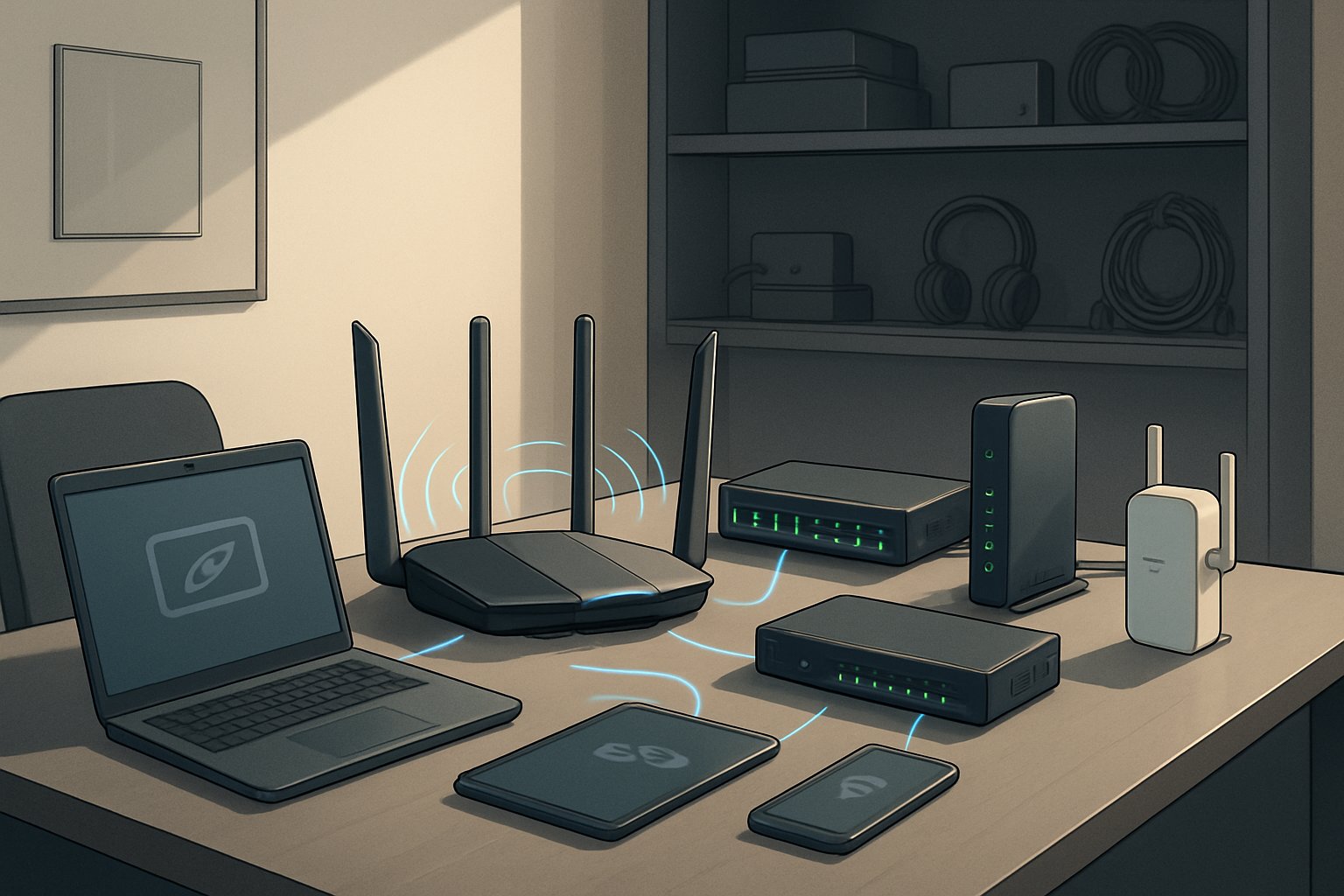
The difference between a basic home network and an optimized connectivity hub comes down to the right peripherals deployed strategically. A mesh Wi-Fi system blankets an entire home with consistent coverage, while USB-C hubs and docking stations consolidate multiple connections into single access points. This combination removes the chaos of tangled cables, weak signals, and compatibility issues that plague standard setups.
Workers who invest in proper networking peripherals report fewer technical interruptions, faster file transfers, and the ability to switch between devices without reconnecting or reconfiguring settings. The setup process takes a few hours, but the payoff is a reliable infrastructure that supports current workloads and adapts to future connectivity demands.
Key Takeaways
- Mesh Wi-Fi systems and advanced peripherals create stable networks that eliminate dropped connections and dead zones throughout a home office
- USB-C hubs and multi-port docking stations consolidate device connections into streamlined setups that reduce cable clutter and simplify switching between workstations
- Proper network configuration and security settings protect data while enabling remote management and guest access without compromising work traffic
Why Modern Networking Peripherals Are Essential for Home Offices

Remote work demands reliable connectivity across multiple devices simultaneously, yet basic networking setups frequently cause dropped video calls, slow file transfers, and device conflicts that cost hours of productivity each week.
The Shift to Remote Work and Multi-Device Environments
Remote workers now operate an average of 4-6 connected devices simultaneously during typical workdays. A laptop handles primary tasks while smartphones manage communications, tablets display reference materials, and external monitors extend screen real estate. This multi-device ecosystem requires robust network infrastructure that basic consumer routers cannot adequately support.
Home offices have transformed from occasional workspaces into full-time professional environments. Employees conduct video calls with clients, transfer large files to cloud storage, and access company servers remotely. Each activity competes for bandwidth, creating bottlenecks that degrade performance across all devices.
Basic Wi-Fi routers struggle to distribute bandwidth efficiently when multiple devices connect from different rooms. Signal strength weakens through walls and floors, forcing workers to stay within limited ranges. Mesh Wi-Fi systems address these limitations by creating multiple access points that maintain consistent coverage throughout living spaces.
The Pitfalls of Basic Connectivity Solutions
Standard networking equipment creates predictable problems in home office settings. Single-band routers offer limited channels that become congested when neighbors’ networks overlap. Dropped connections interrupt video calls at critical moments, damaging professional credibility and requiring additional follow-up meetings.
Basic setups lack device management capabilities, preventing users from prioritizing work traffic over household streaming services. When family members watch videos or play games, work applications suffer from lag and timeouts. This bandwidth competition affects file uploads, cloud synchronization, and voice quality during calls.
Connection instability forces workers to spend 3-5 hours monthly troubleshooting network issues. These interruptions fragment focus and delay project completion. Limited port availability on basic routers means constantly swapping cables between devices, adding friction to workflow transitions.
Enhancing Productivity and Reducing Downtime
Advanced networking peripherals eliminate connectivity barriers that slow daily operations. Mesh systems maintain stable connections throughout homes, allowing workers to move between spaces without signal loss. Tri-band technology dedicates specific channels to work devices, ensuring consistent performance regardless of household activity.
Multi-port docking stations consolidate connections into single-cable solutions. Workers connect monitors, keyboards, external drives, and network cables through one USB-C connection. This setup reduces cable clutter and enables instant transitions between laptop mobility and desk-based productivity.
USB-C hubs extend device connectivity without requiring expensive computer upgrades. They provide ethernet ports for wired connections that offer lower latency than wireless alternatives. This stability proves critical for video calls and screen sharing sessions where lag creates communication barriers.
Quality networking equipment reduces technical downtime by 60-70% compared to basic consumer hardware. Reliable connections mean fewer interrupted calls, faster file transfers, and seamless access to cloud resources. Workers spend time completing tasks instead of diagnosing connection problems or restarting equipment.
Mesh Wi-Fi Systems: Blanket Your Home Office With Seamless Coverage
Mesh networks eliminate the coverage gaps and weak signals that plague traditional routers by distributing connectivity across multiple nodes. Understanding how these systems work and selecting the right configuration ensures consistent performance throughout your workspace.
How Mesh Networks Work
A mesh network uses multiple nodes that communicate with each other to create a unified wireless network under a single SSID. Unlike traditional routers with range extenders, mesh nodes share the same network name and password, allowing devices to connect to the strongest signal automatically without manual switching.
The primary node connects directly to the modem and serves as the gateway. Additional nodes, called satellites or access points, establish connections with the main node and each other to relay data throughout the coverage area. This creates redundant pathways for data transmission, improving reliability and reducing latency.
Most mesh systems use dedicated radio bands for node-to-node communication, a process called backhaul. This separation prevents the network from competing with client devices for bandwidth. Systems like the eero Pro 7 and TP-Link Deco support both wireless and wired backhaul options, with wired connections delivering superior performance.
Eliminating Dead Zones and Extending Wi-Fi Coverage
Dead zones occur when physical obstacles like walls, floors, and furniture block Wi-Fi signals from reaching certain areas. Mesh systems solve this by positioning multiple access points strategically throughout the space, ensuring every room receives adequate signal strength.
A two-node mesh system typically covers 3,000-4,000 square feet, while three-node configurations extend coverage to 5,000-6,000 square feet. The eero 6+ covers up to 4,500 square feet with three nodes, making it suitable for most home offices and multi-story layouts.
Node positioning determines coverage effectiveness. Place the primary node centrally near the modem, then position satellites in areas where signal strength begins to weaken. Avoid placing nodes in enclosed cabinets or behind large metal objects that interfere with signal transmission.
Mesh networks automatically route traffic through the path with the strongest signal. If one node fails, the system redirects connections through alternative nodes, maintaining continuous coverage without manual intervention.
Choosing Between Dual-Band, Tri-Band, and Wi-Fi 6/7 Mesh Systems
Dual-band routers operate on 2.4GHz and 5GHz frequencies simultaneously. The 2.4GHz band offers longer range but slower speeds, while 5GHz provides faster throughput over shorter distances. These systems work well for homes with fewer than 25 connected devices and basic bandwidth requirements.
Tri-band mesh systems add a third radio band—either an additional 5GHz channel or a 6GHz band in Wi-Fi 6E models. The Netgear Orbi and Asus ZenWiFi AX (XT8) use tri-band configurations to dedicate one band exclusively for backhaul communication between nodes. This prevents congestion and maintains consistent speeds even when multiple devices stream simultaneously.
Wi-Fi 6 mesh systems support faster speeds, improved efficiency, and better performance in dense device environments. Technologies like MU-MIMO and OFDMA allow these systems to communicate with multiple devices simultaneously rather than sequentially. The eero 6+ and Asus ZenWiFi AX deliver AX3000 and AX6000 speeds respectively.
Wi-Fi 7 routers introduce 320MHz channels and multi-link operation, significantly increasing throughput potential. The eero Pro 7 and TP-Link BE63 support Wi-Fi 7 specifications, offering BE10800 and BE1000 rated speeds for future-proofing against increasing bandwidth demands.
Key Features: Node Positioning, Access Points, and Wired Backhaul
Strategic node positioning maximizes coverage efficiency. Place nodes within line of sight when possible, avoiding thick walls and floors that attenuate signals. Most systems include mobile apps that display signal strength between nodes, helping identify optimal placement locations.
The number of access points needed depends on home size and layout. Start with two nodes for spaces under 3,000 square feet, adding satellites as needed for larger areas or challenging floor plans with multiple stories.
Wired backhaul uses Ethernet cables to connect mesh nodes, eliminating wireless interference and maximizing available bandwidth for client devices. Systems like the Asus ZenWiFi AX (XT8) include multiple LAN ports per node—three on the router and four on satellites—facilitating wired backhaul deployment. This configuration delivers superior performance compared to wireless backhaul, particularly for bandwidth-intensive tasks like 4K streaming or large file transfers.
Additional features enhance functionality. Thread and Zigbee support in systems like the eero Pro 7 enable direct control of smart home devices without separate hubs. Integration with Amazon Alexa or Google Assistant allows voice commands for network management. USB ports on select models like the TP-Link BE63 enable network-attached storage or printer sharing across all connected devices.
Beyond Wi-Fi: Wired Connections and Network Optimization
Wired connections deliver consistent speeds and lower latency compared to wireless alternatives, making them essential for bandwidth-intensive tasks like video conferencing and large file transfers. Strategic use of ethernet cables, switches, and USB-C hubs creates a robust infrastructure that supports multiple devices without the interference common in wireless networks.
Ethernet Cables, Switches, and USB-C Hubs
Cat6 ethernet cables support speeds up to 10 Gbps over shorter distances and provide the foundation for reliable wired connections between the modem, router, and connected devices. These cables minimize packet loss and eliminate the signal degradation that affects wireless transmissions.
Network switches expand available ethernet ports when the router lacks sufficient connections. A managed or unmanaged switch connects to the router via a single cable and provides four to sixteen additional ports for laptops, printers, and other equipment.
USB-C hubs bridge the gap between modern laptops with limited ports and wired network infrastructure. Many hubs include an ethernet port alongside USB-A connections, SD card readers, and HDMI outputs. This allows users to connect their laptop to a wired network while simultaneously accessing peripherals through a single cable connection.
The combination of quality ethernet cables and appropriate hubs ensures devices maintain stable connections without cluttering the workspace with multiple adapters.
Ethernet Backhaul for Stable Performance
Mesh Wi-Fi systems typically connect nodes wirelessly, but ethernet backhaul creates dedicated wired connections between the main router and satellite nodes. This configuration reserves wireless bandwidth for client devices rather than using it for node-to-node communication.
Implementing ethernet backhaul requires running Cat6 cables from the primary router to each mesh node location. The wired backhaul eliminates the speed reduction that occurs when wireless nodes relay signals across multiple hops.
Users experience faster throughput and more consistent performance across all connected devices. Gaming systems, streaming devices, and work computers benefit from the reduced latency that wired backhaul provides to the nearest WiFi access point.
Network congestion decreases significantly because the mesh nodes communicate through dedicated ethernet connections rather than competing for wireless spectrum with smartphones, tablets, and IoT devices.
Expanding Wired Device Capacity With Docking Stations and Multi-Port Hubs
Multi-port docking stations transform a single USB-C or Thunderbolt connection into a complete workstation hub with ethernet, multiple USB ports, display outputs, and power delivery. These devices eliminate the need for multiple adapters while providing gigabit ethernet connectivity.
A quality docking station supplies 85-100W of power to charge laptops while simultaneously handling data transfer and network connectivity. Users connect their laptop once and gain immediate access to wired network connections, external monitors, keyboards, and storage devices.
Multi-port hubs offer a more compact alternative for users who need fewer connections. These typically include three to seven USB ports along with an ethernet port, allowing connection of peripherals and wired network access without the bulk of a full docking station.
Desktop setups benefit from powered USB hubs that maintain consistent power delivery to connected devices while preventing the power drain that can occur with bus-powered hubs. The combination of powered hubs and ethernet connections creates a stable environment for external hard drives, webcams, and other USB peripherals that require reliable data transfer speeds.
Advanced Connectivity Solutions for Device Management
Modern device management requires coordinated control across computers, smartphones, tablets, and smart home devices through unified network infrastructure. Effective management reduces configuration time and ensures stable performance for work applications, entertainment systems, and connected home accessories.
Streamlining Multi-Platform Workflows
USB-C docking stations centralize connections for laptops, external monitors, keyboards, and storage drives through a single cable. These hubs deliver power, data transfer, and video output simultaneously, eliminating the need to plug and unplug multiple cables when switching between devices.
Network-attached storage (NAS) systems provide centralized file access across Windows, macOS, Linux, and mobile platforms. Users can access documents, media files, and project folders from any device on the network without manual file transfers or cloud service subscriptions.
Key management features include:
- Device prioritization: Assign bandwidth allocation to critical work devices during video calls
- Profile switching: Save network configurations for different device combinations
- Port identification: Label physical ports for consistent device placement
Virtual desktop infrastructure (VDI) solutions allow users to access their work environment from tablets or secondary computers. This approach maintains consistent application access and file synchronization regardless of which device connects to the network.
Integrating Smart Home Devices and Voice Assistants
Zigbee devices operate on dedicated mesh networks separate from Wi-Fi, reducing congestion on primary wireless channels. Smart lights, sensors, and locks communicate through Zigbee hubs, which then connect to the main network for voice assistant integration.
Voice assistants like Amazon Alexa and Google Assistant require stable network connections to process commands and control smart home devices. Mesh Wi-Fi systems maintain consistent coverage throughout the home, preventing dead zones that interrupt voice control functionality.
Compatible smart home protocols:
| Protocol | Range | Power Usage | Typical Devices |
|---|---|---|---|
| Zigbee | 10-100m | Low | Lights, sensors |
| Z-Wave | 30m | Very Low | Locks, thermostats |
| Wi-Fi | 50m+ | Moderate | Cameras, displays |
Network segmentation separates smart home devices from work computers and personal devices. Creating a dedicated VLAN or guest network for IoT devices prevents security vulnerabilities in smart accessories from compromising sensitive work data.
Optimizing Gaming, Streaming, and Work Scenarios
Online gaming demands low latency and consistent packet delivery to prevent lag during competitive gameplay. Quality of Service (QoS) settings prioritize gaming traffic over background downloads, ensuring stable connections during multiplayer sessions.
Wired Ethernet connections provide superior performance for gaming consoles and desktop computers compared to wireless alternatives. CAT6 or CAT6a cables support multi-gigabit speeds with minimal latency, critical for fast-paced gaming and 4K video streaming.
Video calls require symmetrical bandwidth allocation for simultaneous upload and download streams. Mesh nodes positioned near home office spaces strengthen wifi performance during video conferences, preventing choppy audio or frozen video feeds.
Performance optimization checklist:
- Connect stationary devices via Ethernet when possible
- Position mesh nodes within line of sight for maximum throughput
- Schedule automatic updates and backups during off-peak hours
- Enable band steering to direct capable devices to 5GHz channels
Dual-band or tri-band routers separate traffic across multiple frequency ranges, allowing simultaneous streaming on one band while maintaining low-latency gaming on another. This separation prevents bandwidth competition between household activities and work requirements.
Network Security, Guest Access, and Parental Controls
Advanced networking peripherals require robust security configurations to protect work data while accommodating household internet needs. Modern mesh systems and routers offer enterprise-grade security features including WPA3 encryption, network segmentation through VLANs, and granular access controls that balance professional requirements with family connectivity.
Securing Your Home Office Network
Router security begins with changing default administrator credentials immediately after installation. Default passwords remain one of the most exploited vulnerabilities in home networks.
WPA3 encryption provides the strongest wireless protection available and should be enabled on all compatible devices. This protocol prevents unauthorized access attempts and protects data transmitted between devices and access points. Users with older hardware may need WPA2, but WPA3 offers significantly improved security for sensitive business communications.
Firmware updates address security vulnerabilities discovered after manufacturing. Most mesh systems provide automatic updates, but standalone routers often require manual checking. Network administrators should verify update schedules monthly and enable automatic updates when available. Disabling remote management features prevents external access to router settings unless specifically needed for technical support.
Setting Up Secure Guest Networks
Guest networks isolate visitor devices from primary work systems through network segmentation. This separation prevents unauthorized access to business files, printers, and connected devices while providing internet connectivity to household members and visitors.
VLAN configuration creates distinct network pathways that treat guest traffic separately from primary network data. Most modern mesh systems offer one-click guest network setup, though manual VLAN configuration provides additional control over bandwidth allocation and access restrictions. Guest networks should use different passwords than primary networks and require periodic password rotation.
Bandwidth limitations prevent guest users from consuming resources needed for video conferences or large file transfers. Time-based access controls automatically disable guest networks during work hours or specific periods when business activity requires full network capacity.
Leveraging Parental Controls and Scheduled Internet Access
Parental control features extend beyond child safety to include workforce management for home offices. These tools pause internet access for specific devices during designated work blocks, minimizing household disruptions during critical business hours.
Content filtering operates at the DNS level through the internet service provider or router firmware. This approach blocks categories of websites without requiring software installation on individual devices. Scheduled access policies restrict specific devices to predetermined time windows, useful for managing smart home devices that might interfere with bandwidth-intensive work tasks.
Device-specific controls allow different rules for work computers, personal tablets, and entertainment systems. Activity logs track connection attempts and bandwidth usage patterns, helping identify network performance issues or unauthorized access attempts. Most mesh systems include mobile apps that enable real-time adjustments to access policies without logging into router interfaces.
Installation, Configuration, and Remote Management Best Practices
Proper installation sequences and ongoing configuration adjustments determine whether networking peripherals deliver their advertised performance or create new bottlenecks. Remote management capabilities and Quality of Service settings separate professional-grade setups from consumer-level installations.
Step-by-Step Network Setup for Maximum Performance
Users should begin by positioning the primary mesh Wi-Fi node within five feet of the modem to ensure optimal backhaul performance. Most mesh systems achieve their best results when satellite nodes maintain line-of-sight positioning roughly 30-40 feet from the main unit, avoiding placement near metal objects or microwave ovens.
The network setup process requires accessing the router’s web interface through its IP address (typically 192.168.1.1 or 192.168.0.1) using a web browser. Users must immediately change default administrator credentials to prevent unauthorized access. Modern routers supporting WiFi 6 should have this standard enabled in the wireless settings menu.
Gigabit Ethernet ports on the primary router should connect directly to high-bandwidth devices like docking stations and desktop computers. These wired connections bypass wireless congestion entirely and guarantee consistent gigabit speeds for data-intensive tasks.
USB-C hubs and docking stations require specific installation sequences. Users should install manufacturer drivers before connecting the hub to prevent device recognition failures. Windows users need to verify Power Delivery (PD) settings in Device Manager, while macOS users should check System Preferences for proper Thunderbolt recognition.
Remote Monitoring, Updates, and Troubleshooting
Remote management platforms from manufacturers like Ubiquiti, TP-Link, and Netgear enable administrators to monitor network performance from any location with internet access. These systems display real-time bandwidth consumption, connected device counts, and signal strength metrics through mobile apps or web dashboards.
Users should enable automatic firmware updates during off-peak hours (typically 2-4 AM) to maintain security patches without disrupting work sessions. Manual update checks should occur monthly for peripherals lacking automatic update features. Critical security vulnerabilities often require immediate patching regardless of the scheduled maintenance window.
Network monitoring tools identify performance degradation before it becomes noticeable. Administrators can review historical bandwidth graphs to spot unusual traffic patterns that may indicate security breaches or bandwidth-hogging applications. Most enterprise-grade mesh systems log connection drops and interference events for diagnostic purposes.
Quality of Service (QoS) and Performance Tuning
Quality of Service (QoS) settings prioritize traffic types to prevent video calls from buffering when large file transfers occur simultaneously. Users should configure QoS rules by assigning highest priority to video conferencing applications (Zoom, Teams, Google Meet) and VoIP services.
| Priority Level | Traffic Type | Bandwidth Allocation |
|---|---|---|
| Critical | Video Conferencing | 40-50% |
| High | Cloud Storage Sync | 20-30% |
| Medium | Web Browsing | 15-20% |
| Low | Software Updates | 10-15% |
Users must input their actual internet speed from their internet plan into the QoS settings rather than accepting auto-detected values. ISPs typically deliver 85-95% of advertised speeds, so a 500 Mbps internet plan should have QoS configured for 450 Mbps to prevent over-allocation.
Advanced users can implement VLAN segmentation to isolate IoT devices from work computers on separate network segments. This configuration prevents compromised smart home devices from accessing sensitive business data while maintaining convenient wireless connectivity throughout the home office.